The editor can describe not only activities and participants, but also the structure of a system and the periods during which replaceable objects occupy named system-component slots. This is useful when the same physical location or role in a system is filled by different items over time, or when you need to validate that an activity only uses an installed object while it is actually in place.
There are three entity categories involved. A System defines a parent asset or assembly. A System Component defines a named slot or role within that system. An Individual can then be fused with one or more system-component slots across specific time ranges (these fusions are called installations in the editor). That lets the editor represent both structure and change over time in the same diagram.
This sits alongside the editor guide and the activity-modelling introduction. The difference is that this guidance is focused on how the system structure is created, how installation periods are managed, and how the editor validates those periods when you create or change activities.

Step 1: Create the system
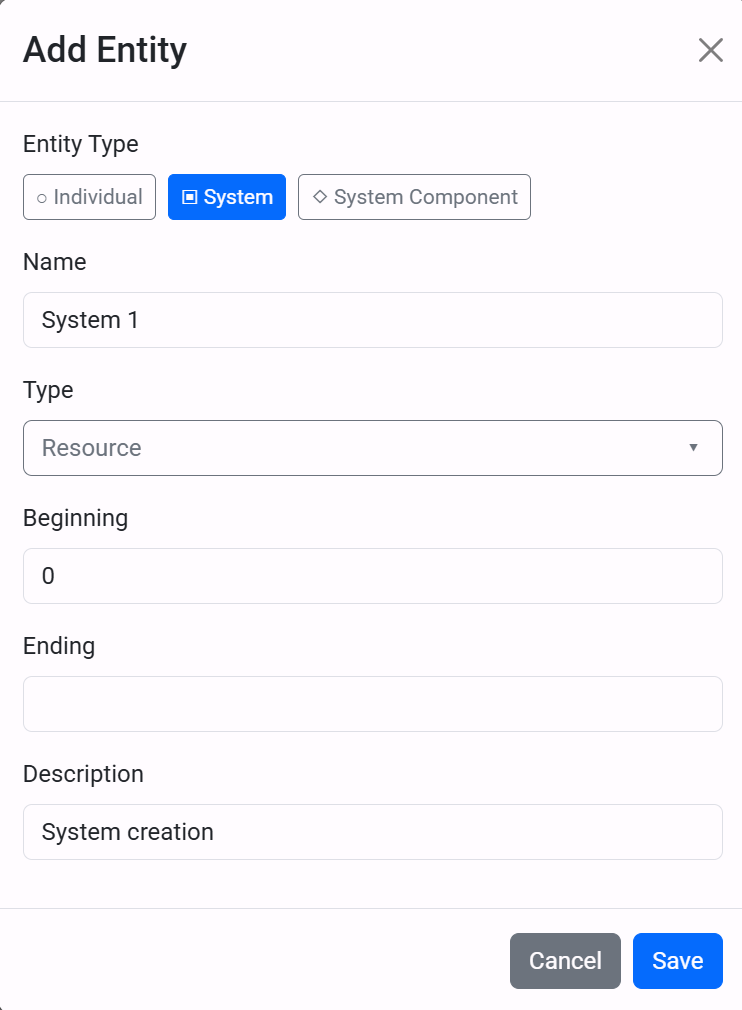
Start by creating an entity and setting its category to System. This creates the top-level container for the part of the asset or assembly you are modelling. Give it a name, type, and a beginning and ending that represent the period during which that system exists in the model.
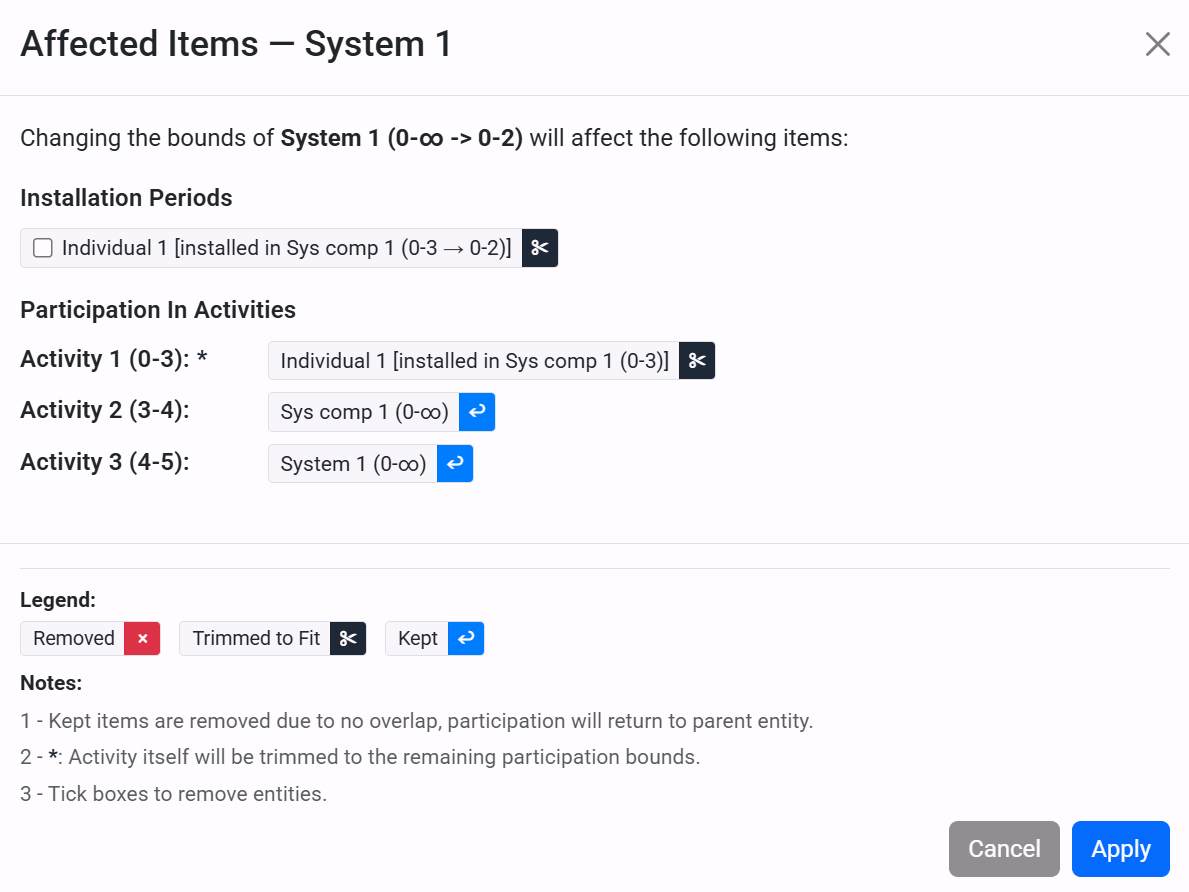
The system lifespan matters because dependent system components and installation periods are checked against it. If the system is shortened later, the editor can warn that related items such as system components, installation periods, and activity participations may need to be updated or removed.
Step 2: Add system components
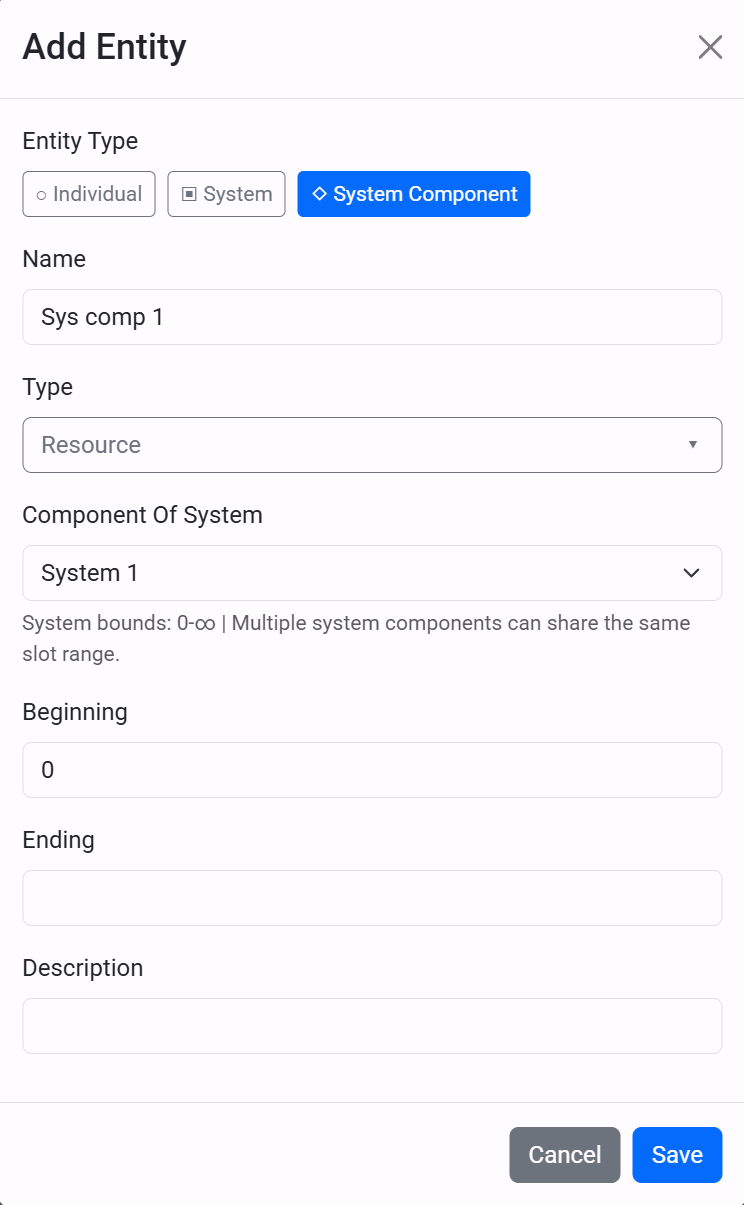
A system component represents a named slot within a system. Create another entity, change its category to System Component, and use the Component Of System field to select its parent system.
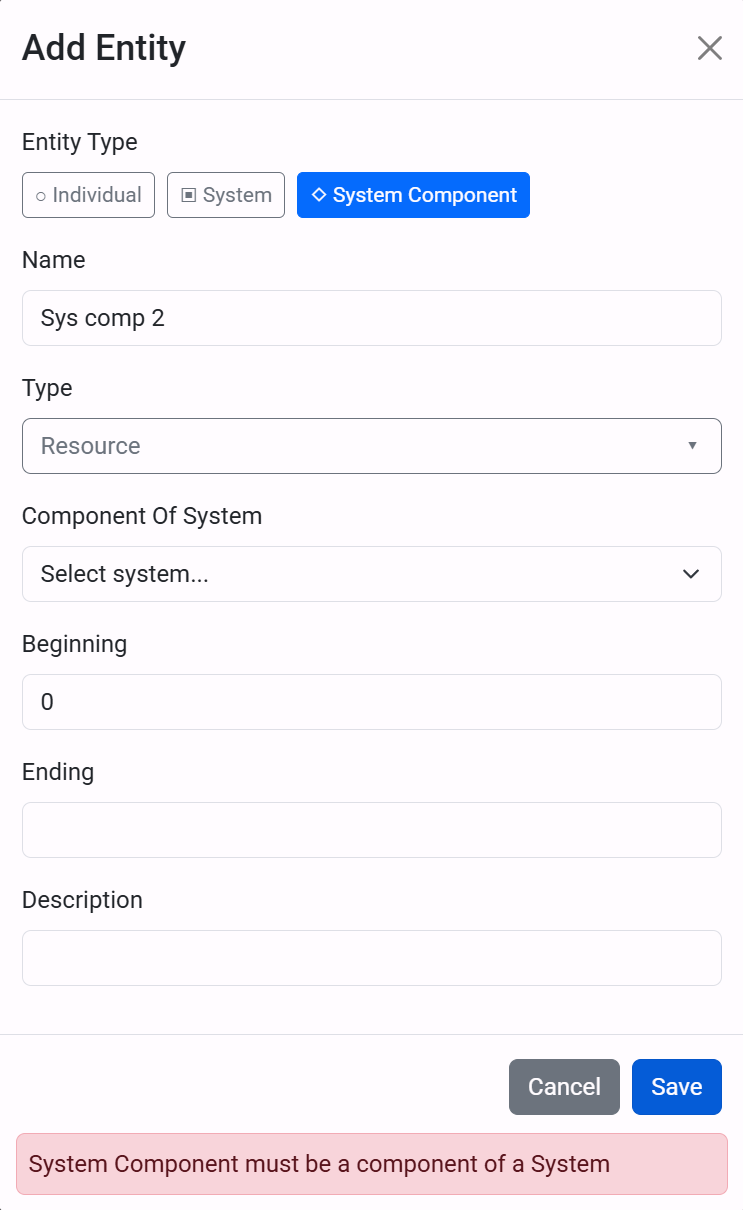
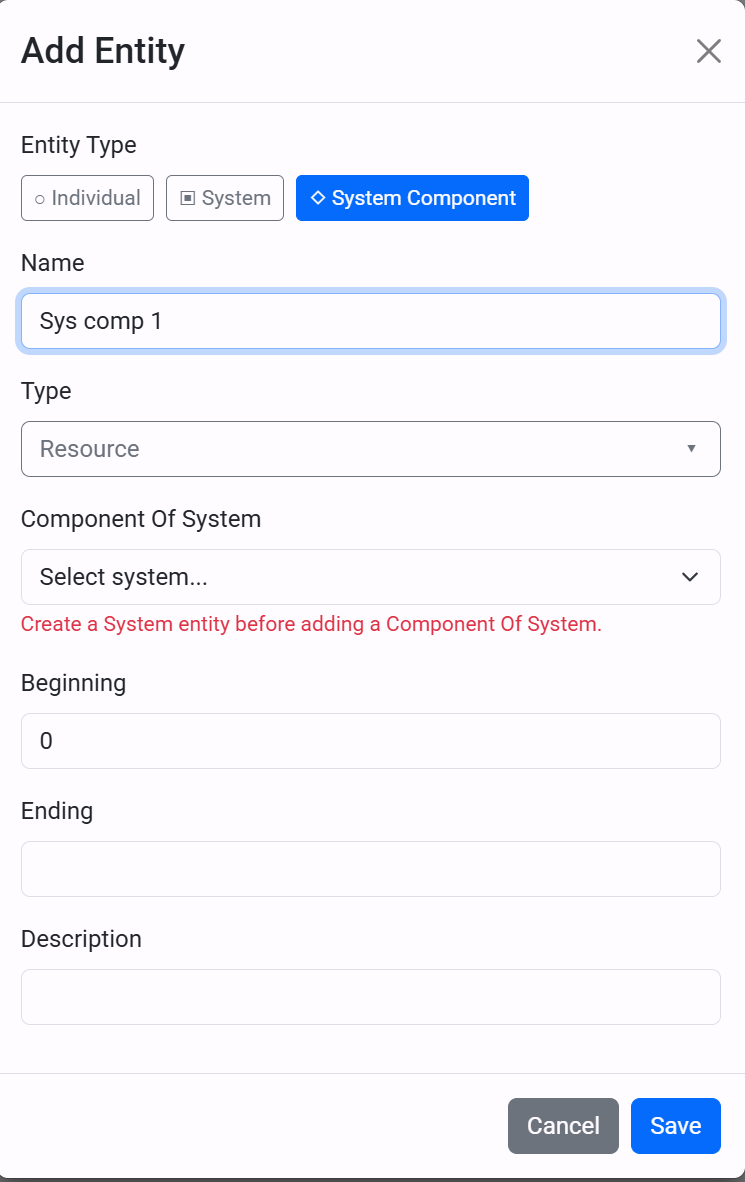
The editor requires a parent system before a system component can be saved. It also checks that the selected parent really is a system, and it shows the parent bounds while you are configuring the component. Multiple system components are allowed to share the same slot range when that is useful for modelling alternatives or layered structures.
Step 3: Fuse individuals into component slots
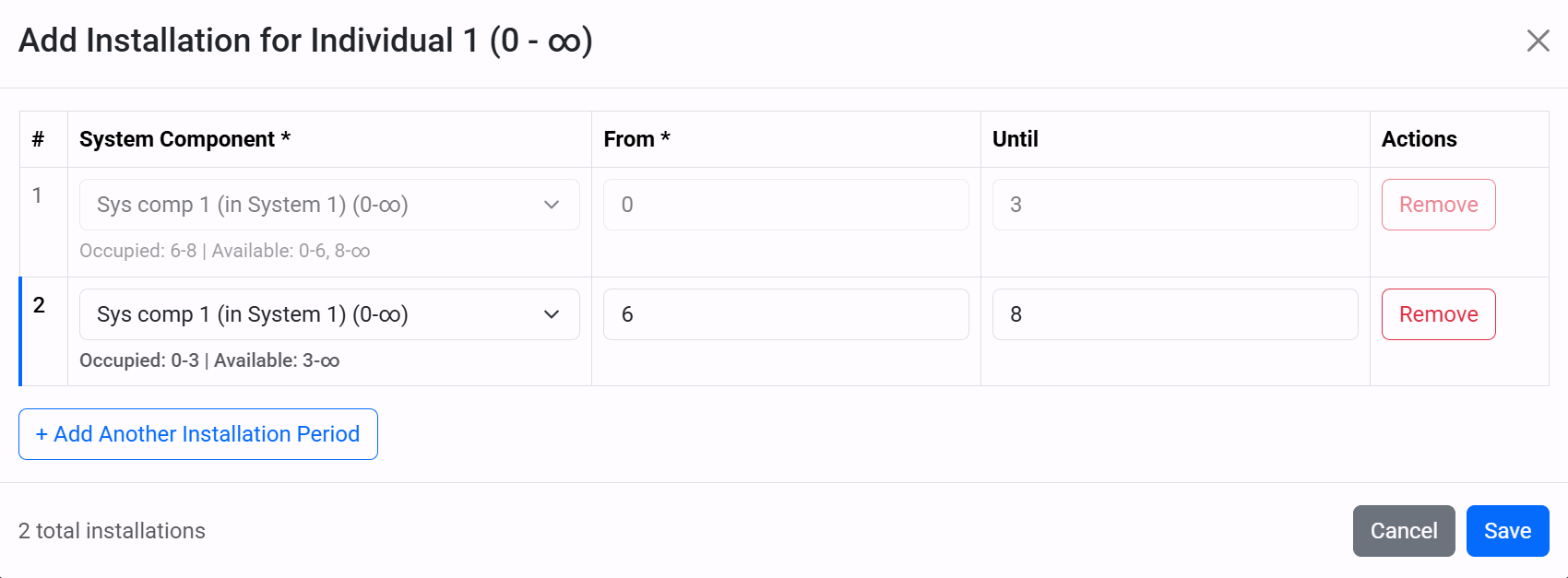
Installation periods are applied to ordinary individuals, not to systems or system components. An installation represents the fusion of an individual with a system-component slot for a specific time range. Once an individual exists, reopen it in edit mode and use the Add Installation button. Each row records a target system component, a start time, and an end time.
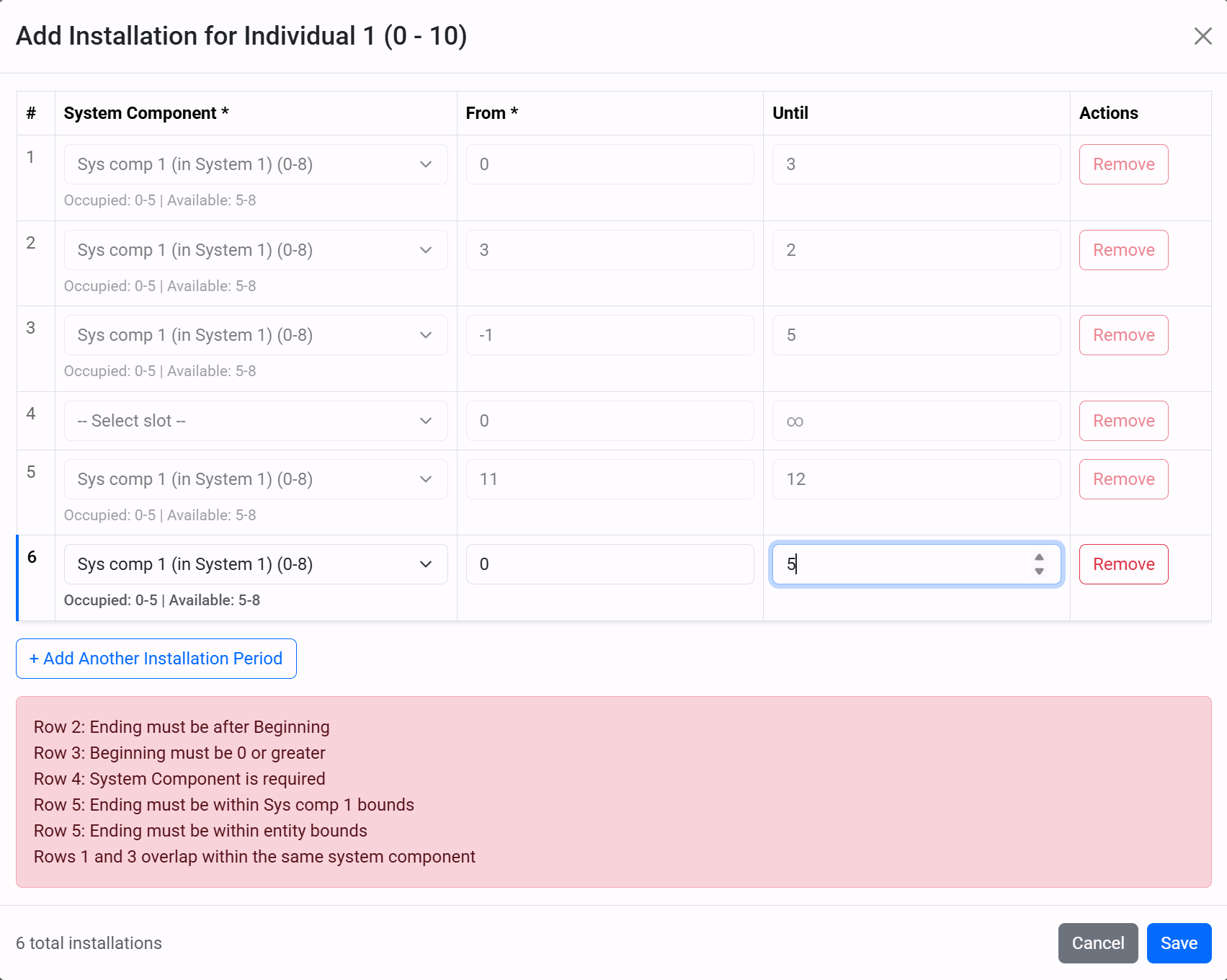
You can add multiple installation periods for the same individual, which makes it possible to model replacement, movement between slots, or repeated use of the same slot over time. The installation modal also shows occupied and available ranges for the selected slot so the row can be checked before saving.
Step 4: Check activities against entities
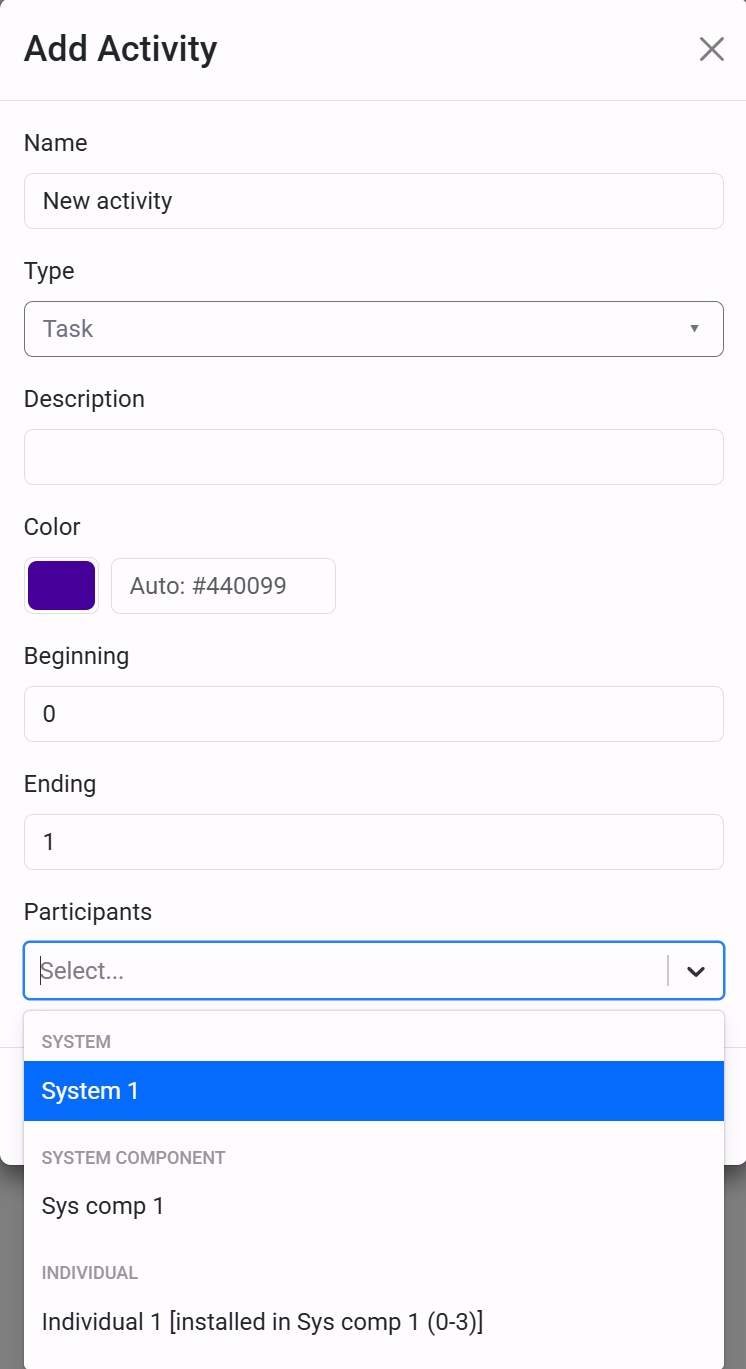
Activities still use participants in the usual way, but the participant list is organised by systems, system components, and individuals. Only entities whose lifespan overlaps the activity time window appear as valid options. For individuals with installation periods, those periods are checked as an additional constraint before the participation is accepted.
This is the point where system and system component modelling becomes useful rather than decorative. The activity model and the entity model start checking one another, so the participant options reflect the structure and time bounds already captured in the diagram.
Validations and safeguards
A system component cannot be saved without a parent system.
A system component can only be a component of an entity that is itself a system.
The system and entity workflow includes several checks to prevent invalid or inconsistent states:
- Installation rows must include a valid system component and a non-negative beginning.
- Each installation ending must be after its beginning.
- Installation periods must stay within both the system-component bounds and the installed individual's own bounds.
- Two rows for the same individual cannot overlap in the same system-component slot.
- Two different individuals cannot overlap in the same component slot at the same time.
The editor also sanitizes installation periods after individual updates. If a target component no longer exists, or if the valid overlap between the individual, the component, and the parent system disappears, the affected installation period is removed automatically.
If editing or deleting a system or system component would affect anything else, the editor opens an affected-items dialog before the change is applied. The dialog shows only the impacted items, so you can review the consequences before saving.